|
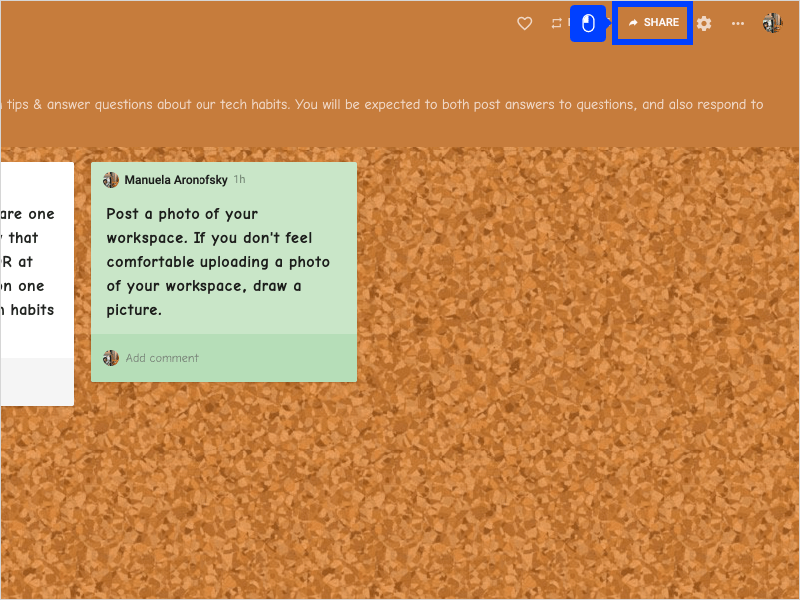
1. When you're ready to share your Padlet with your class, Click Share at the top of the screen.
|
|
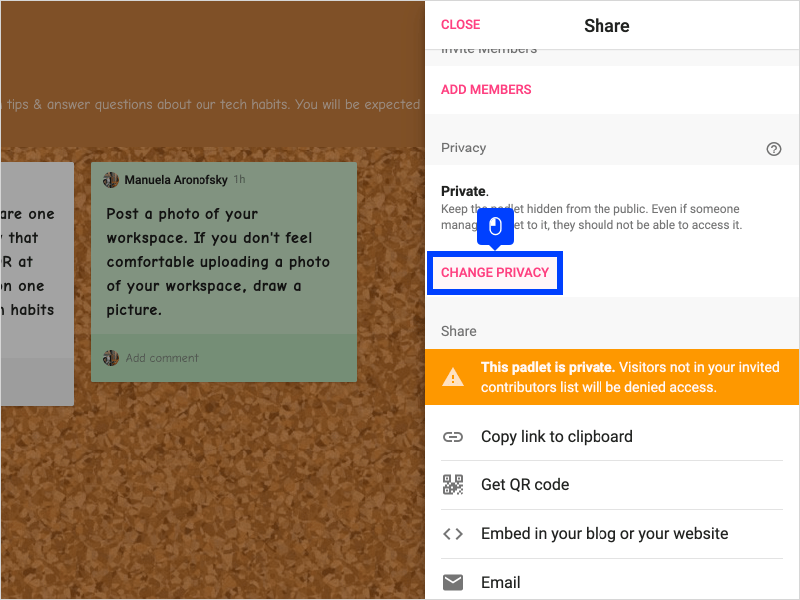
2. Scroll down and Click Change Privacy. This is important!
|
|
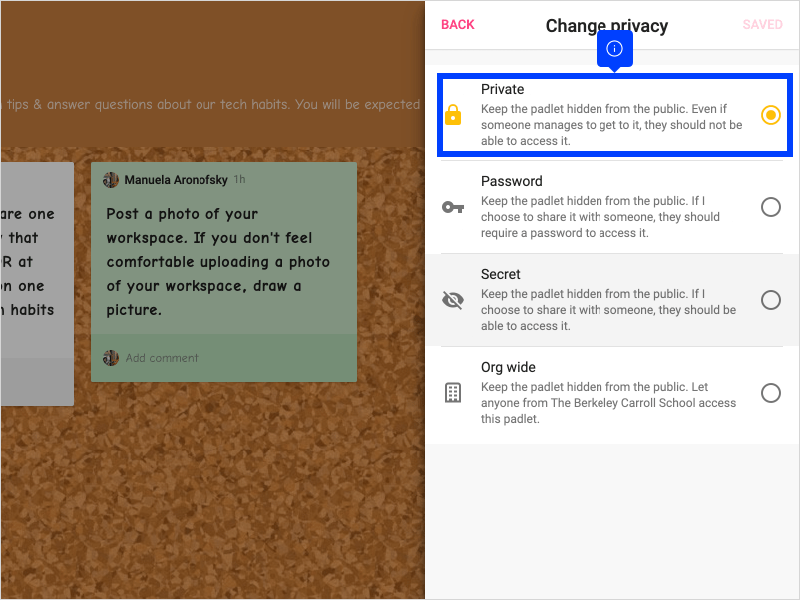
3. What you DO NOT want is to keep your Padlet private, because then nobody will be able to access it (even after you share the link).
|
|
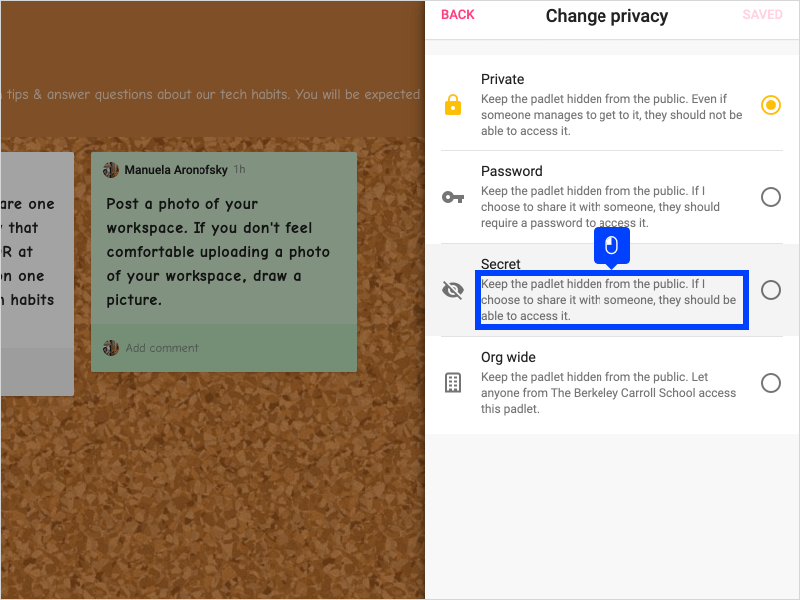
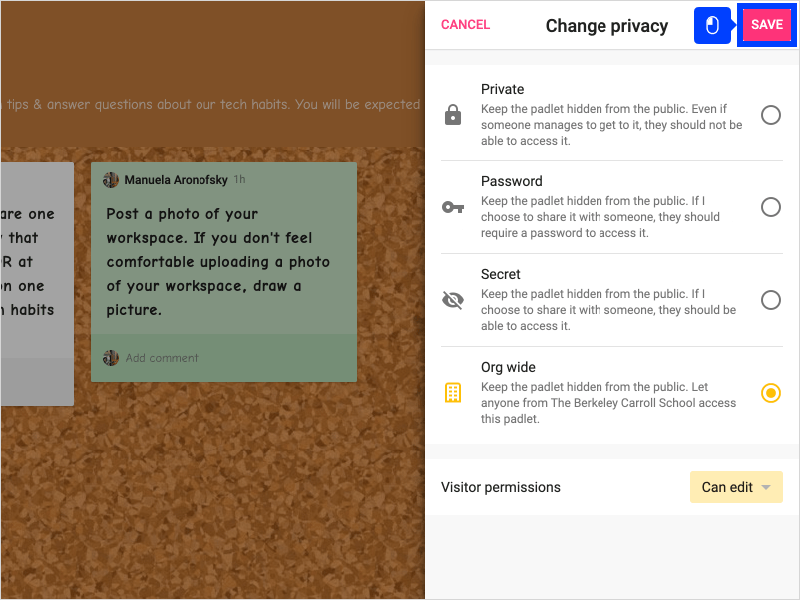
4. The two most helpful privacy settings are probably Secret, and Org wide. If your Padlet is secret, students will be able to access it once you share the link. Since we have a school account, the other option would be to keep it public to just BC.
|
|
5. Select either Secret, or Org wide to share your Padlet most effectively.

|
|
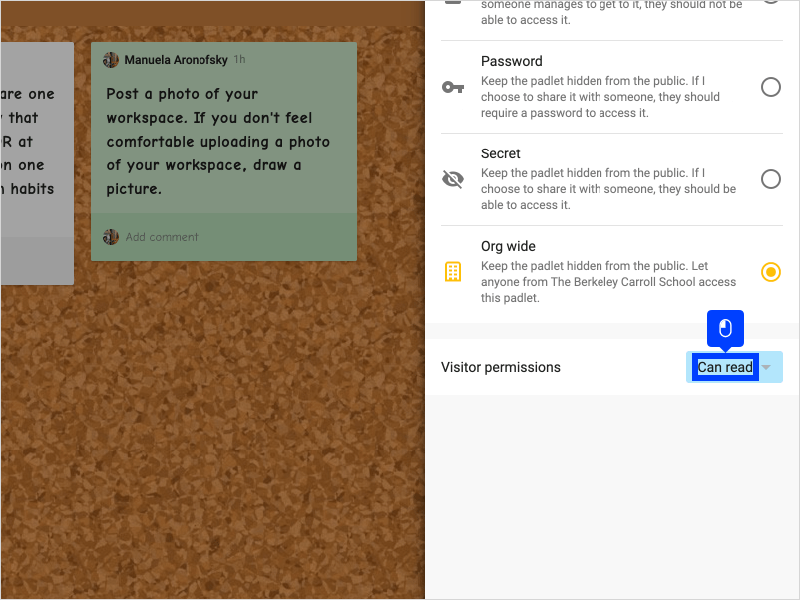
6. Then make sure your Visitor Permissions are correct. What you DON'T want is to share your Padlet as "Can Read" only.
|
|
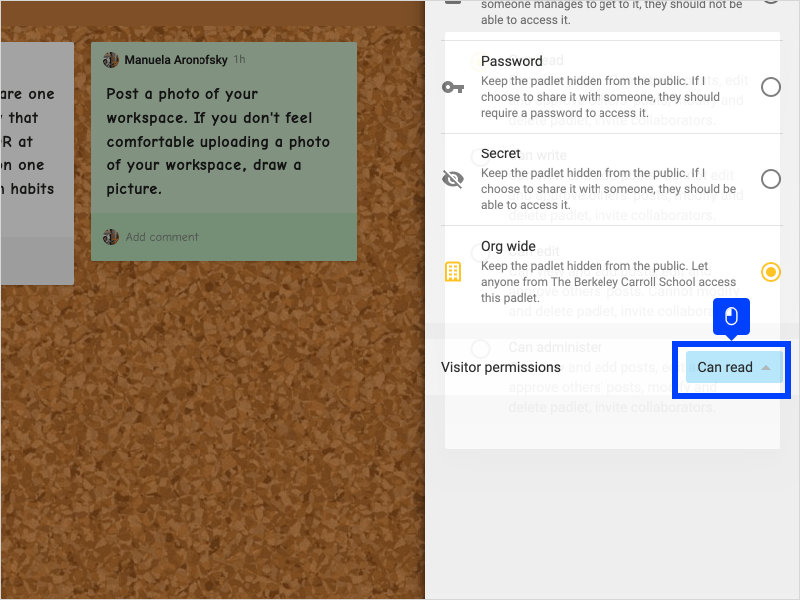
7. Click the menu to change the visitor permissions.
|
|
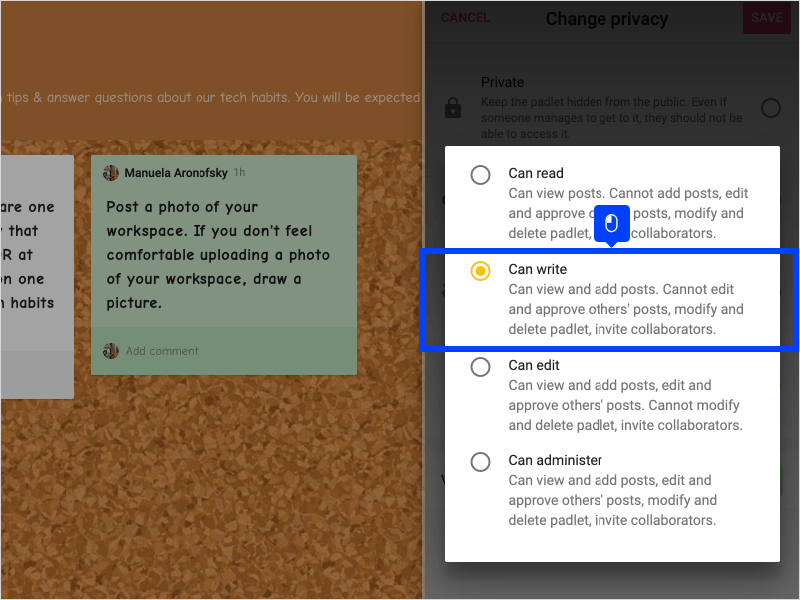
8. Click Can write to create a Padlet that students can just respond to, or add posts to. This is probably the most helpful option for you as a teacher, as students will be able to interact with your Padlet, but not modify it.
|
|
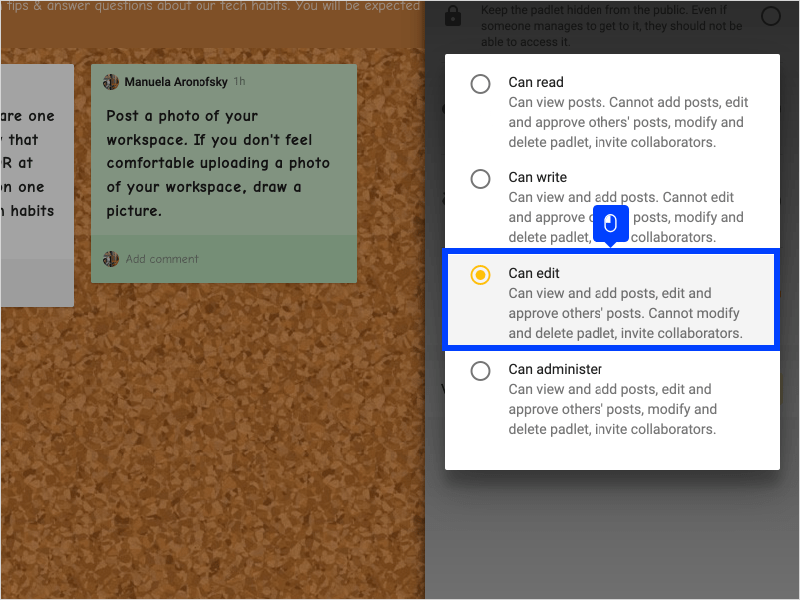
9. If you did want a Padlet that students have more control over, you could select Can edit. But for most purposes, Can write will do!
|
|
10. Click Save when you're sure your settings are correct. If students are having trouble accessing, viewing, or editing your Padlet you can always go back to these Share settings to make sure they're correct.
|
|
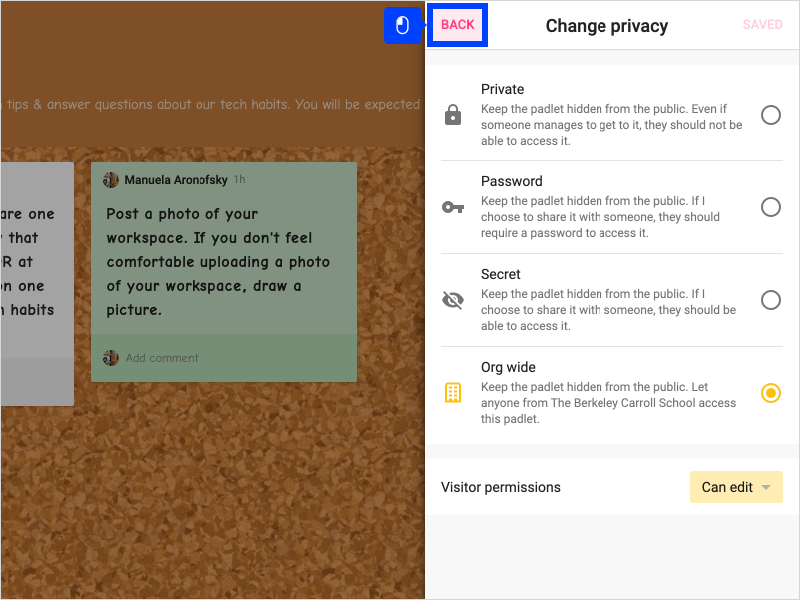
11. Click Back to access the Share link, so you can send it to your students.
|
|
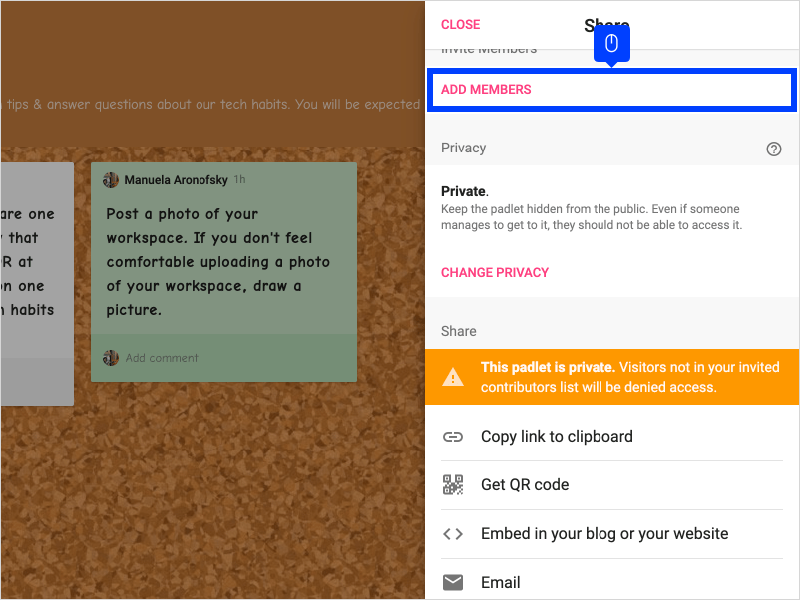
12. There are a few different ways to share a Padlet with students. I would recommend SKIPPING over the "Add Members" option This asks you to add students manually, and you may run into issues if students don't have their accounts set up.
|
|
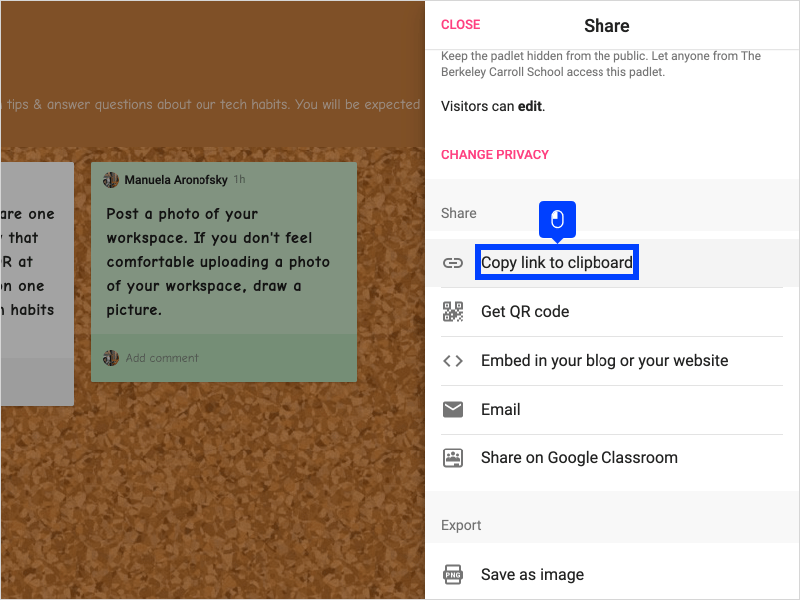
13. There are a few other ways to share your Padlet with students.I think the most helpful ways are to Click Copy link to clipboard. This way you can paste it into Google Classroom directly.
|
|
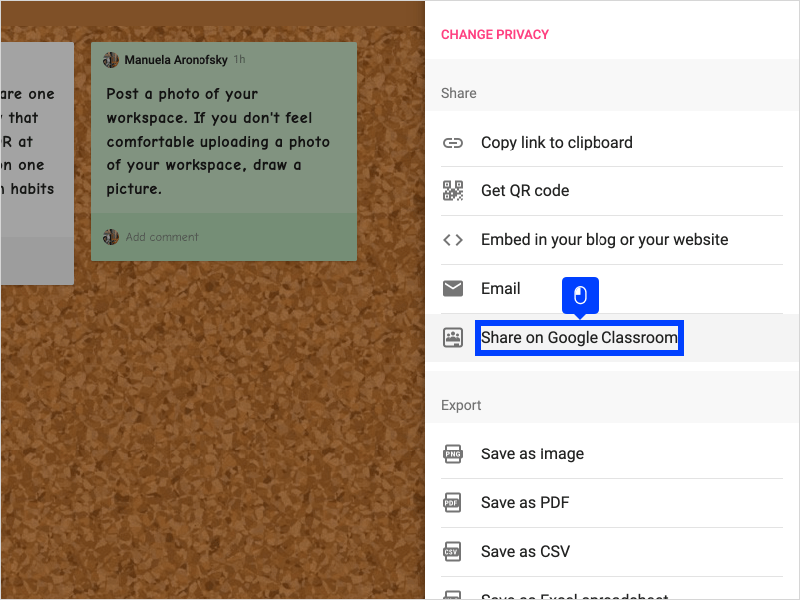
14. Or, Click Share on Google Classroom to open up Google Classroom from here, and automatically post an assignment to the right class.
|
|
15. Select your class.

|
|
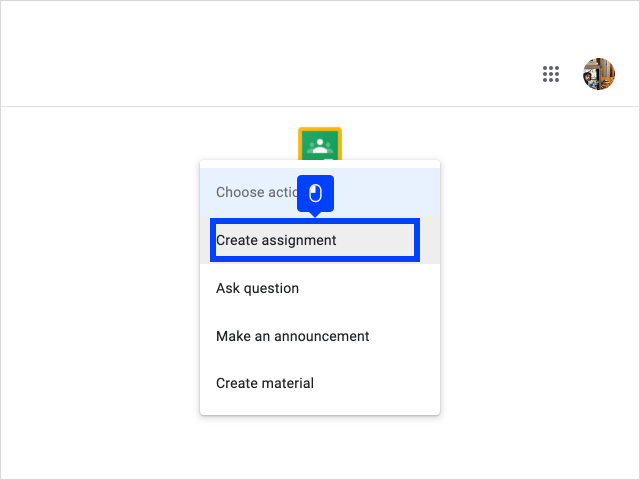
16. Click Create assignment.
|
|
17. Then Click Go to customize your assignment, and post it to Classroom. As soon as you've done this, your students will be able to interact with your Padlet.

|